Setting up Google Calendar for Android and iOS
Due to limitations with the Google Calendar app, the initial subscription process takes a bit more work. Here are the step by step instructions:
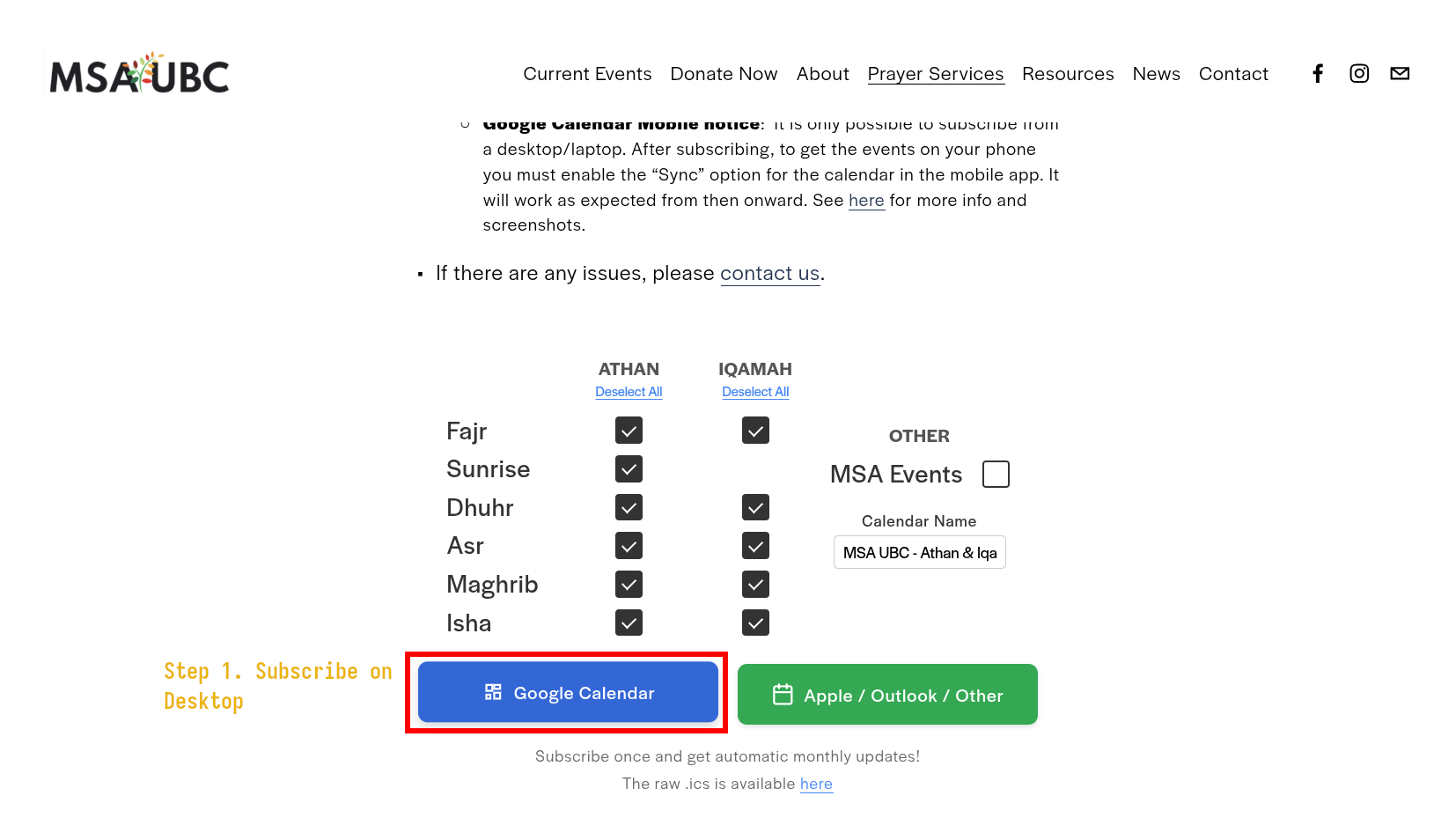
On a desktop or a laptop, build your calendar here and click on the Google Calendar subscription link to add the calendar to your account
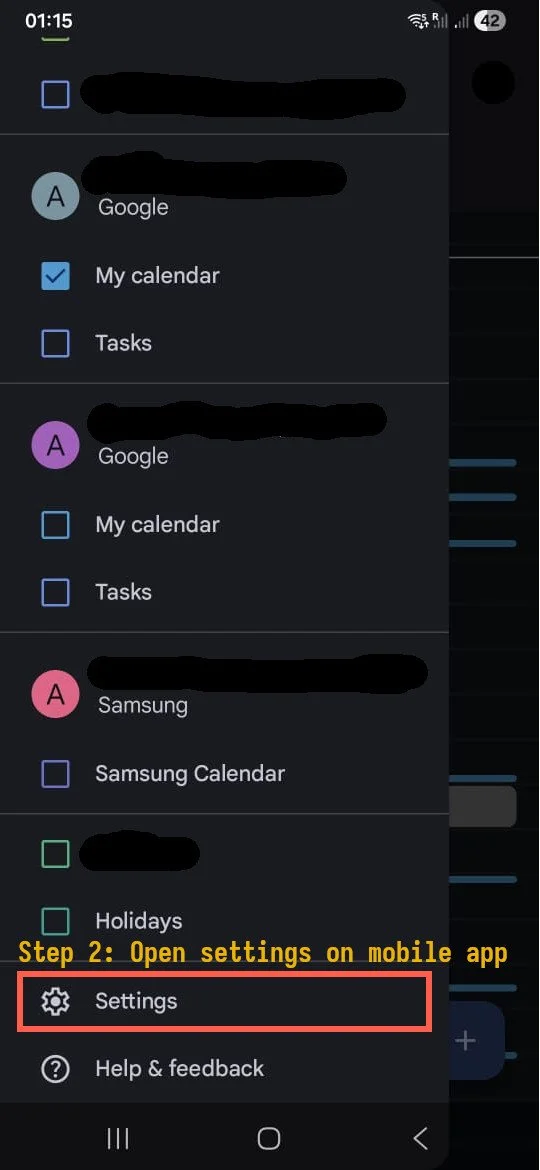
Open the mobile Google Calendar app and open the Settings.
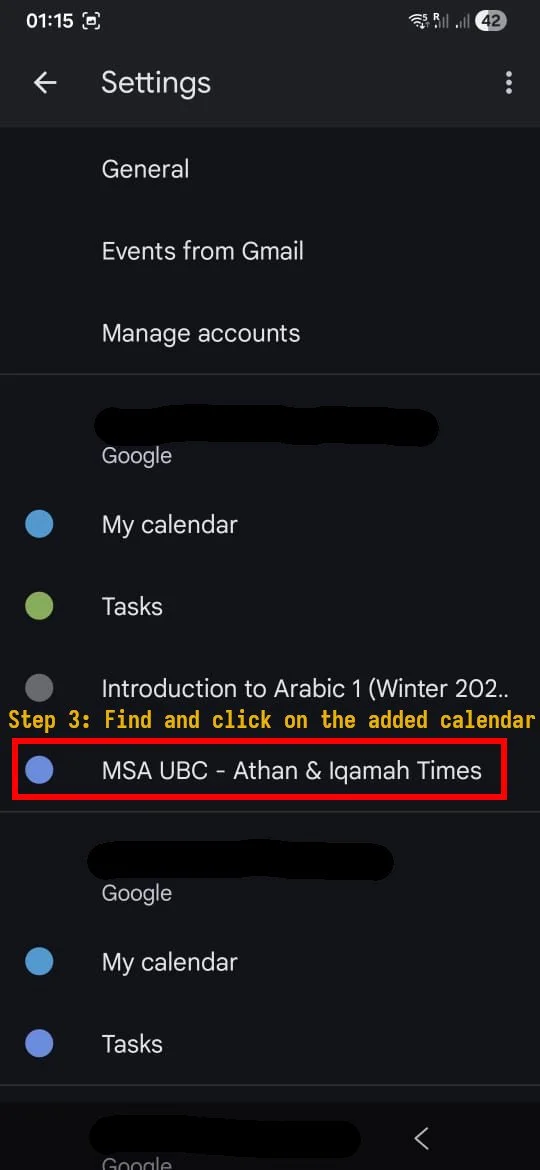
Find the added calendar and click on it. Its name will be the same as what was entered in Step 1 or “MSA UBC“ (if left empty).
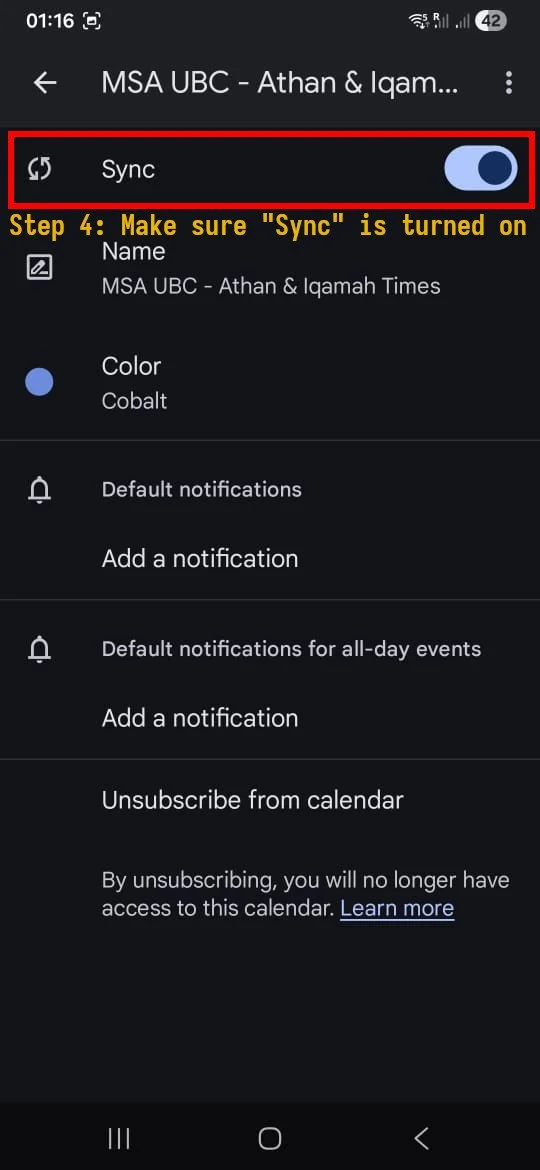
Toggle the “Sync“ option
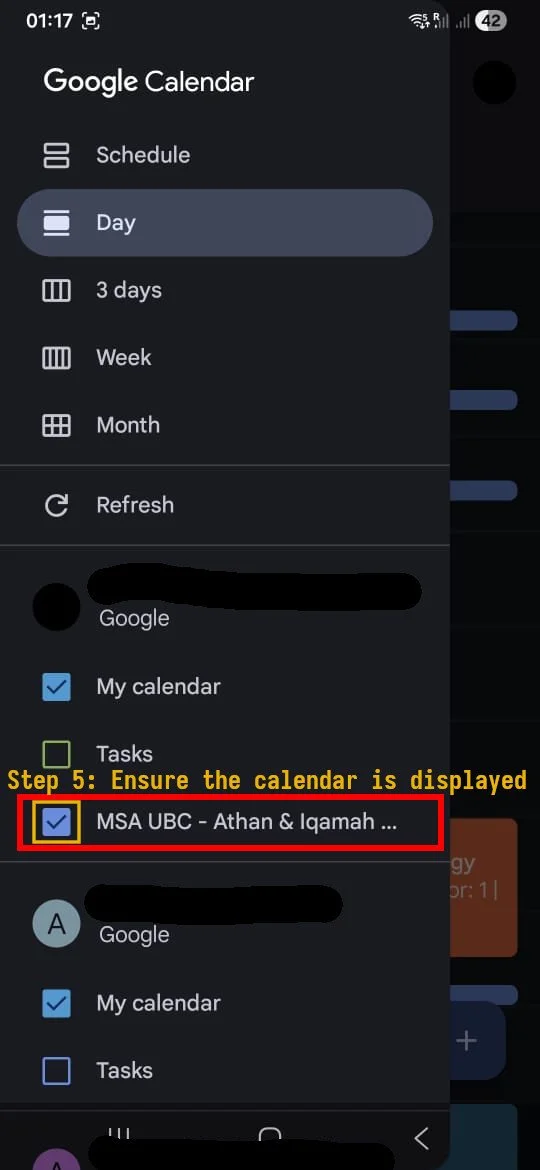
Make sure the events are being displayed by clicking on the checkbox next to the calendar back in the main view
Done! Now the events should appear on the Google Calendar website as well as the mobile app, and new events should show up automatically.